LinkedIn job search filters: best settings for 2026
Use LinkedIn job search filters: best settings for 2026 to find fewer low-quality listings and more real, in-range roles. This guide shows which filters to prioritize (and which to avoid) so your saved searches and alerts surface jobs you can actually land.
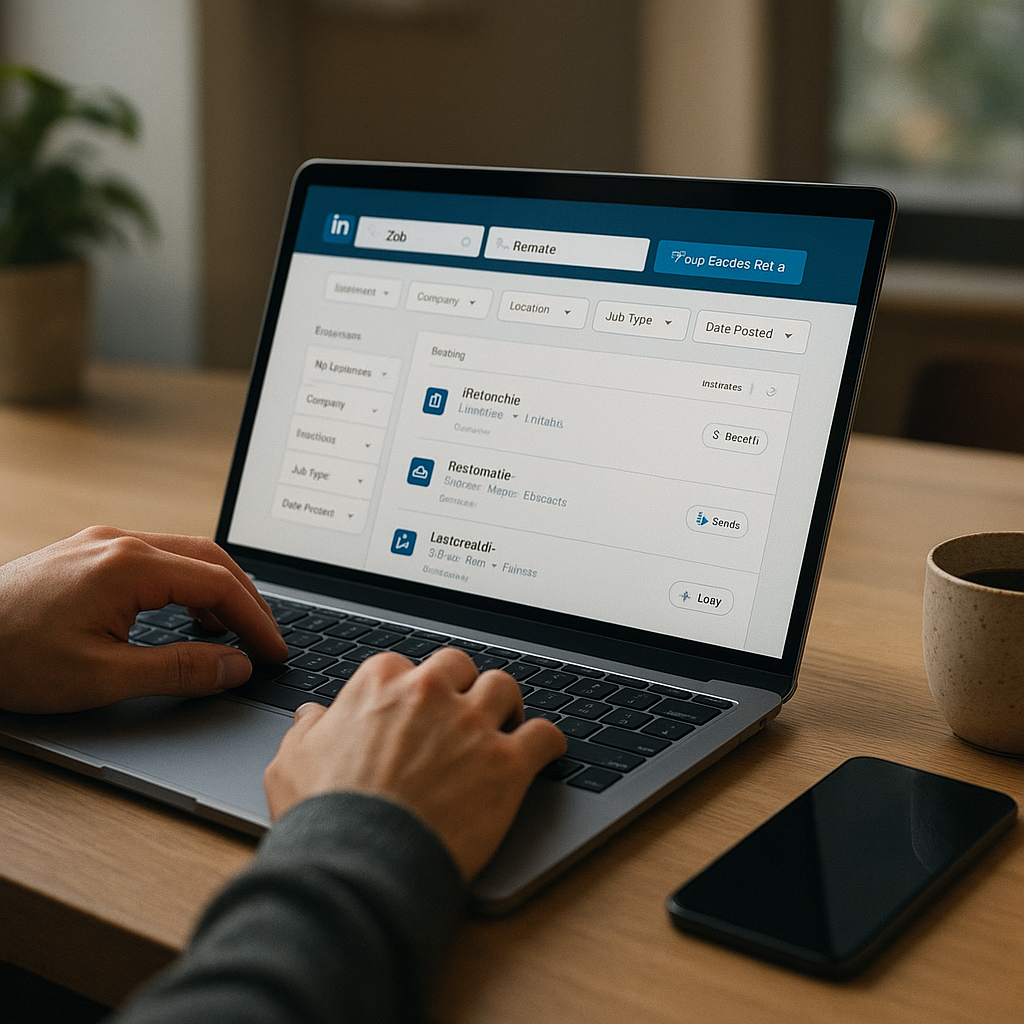
Use linkedin job search filters best settings for 2026 and you’ll immediately see fewer spammy reposts, fewer “ghost” listings, and more roles that actually match your level, location, and pay expectations. The problem isn’t that LinkedIn lacks jobs—it’s that most people search too broadly, rely on the wrong filters, and then let low-signal alerts waste their time.
This guide breaks down the filters that move the needle in 2026 (and the ones that often backfire), so your saved searches and job alerts surface roles you can realistically land—at salaries that make sense.
Why LinkedIn job filters matter more in 2026 (and what’s changed)
In 2026, LinkedIn job search is noisier for three big reasons:
- More “evergreen” and reposted listings: Many companies keep roles open to build pipelines or repost weekly to stay visible, which can flood searches with duplicates.
- More AI-assisted applications: Easy applying has increased application volume, pushing employers to use stricter screening and faster closeouts.
- More hybrid variation: “Hybrid” can mean 1 day/month in-office or 4 days/week on-site—if you don’t filter carefully, you’ll waste interviews on mismatched expectations.
Your goal isn’t to see more jobs. It’s to see better jobs faster—then apply quickly and consistently.
LinkedIn job search filters best settings (2026): the priority order that gets results
If you only change one thing, change this: start narrow, then expand. In 2026, the best performers use a “tight search + smart alerts” approach.
Here’s the order that typically produces the highest-quality results:
1. Location + Work type (On-site/Hybrid/Remote)
2. Experience level
3. Date posted
4. Company (optional but powerful)
5. Job type (full-time/contract)
6. Easy Apply (use strategically—not always)
7. Salary (when available)
8. Industry / Function (only if you’re getting irrelevant results)
Below are the exact settings (and why they work).
Step-by-step: Best LinkedIn filter settings for your saved search + alerts
Set up 2–4 saved searches instead of one mega-search. Think “precision searches” that each represent a realistic lane you’d accept.
1) Location + Work type: control your commute and your competition
Best settings for 2026:
- Choose one metro area (or a tight radius) for hybrid/on-site roles.
- For remote, choose Remote and add a location only if the roles require it (some do).
Pro move: Create separate saved searches:
- Remote (US) + your title keywords
- Hybrid (Your City) + your title keywords
Why? Remote roles attract far more applicants, and hybrid roles often have less competition—but only if you’re actually local.
2) Experience level: stop “entry-level” from hijacking your results
This is where most people leak time.
Recommended approach:
- If you have 0–2 years: prioritize Internship + Entry level
- If you have 2–5 years: prioritize Associate + Mid-Senior (yes, both—titles vary)
- If you have 5–10 years: prioritize Mid-Senior + Director (selectively)
- If you’re senior: prioritize Director + Executive, and use company filters to control quality
Common 2026 mistake: Selecting every experience level “just in case.” That guarantees you’ll get irrelevant alerts and miss the best-fit roles because you’ll burn out.
3) Date posted: your most underrated “quality” filter
Best settings:
- Use Past 24 hours or Past week for daily searching.
- Use Past month only when building a company list or researching role trends.
In 2026, speed matters: many teams review applicants in waves and move the first qualified people to screens quickly—especially for roles with Easy Apply enabled.
4) Company filter: the shortcut to higher-quality listings
If you know which employers you want, use the Company filter aggressively.
How to use it:
- Build a list of 15–30 target companies
- Create one saved search per cluster (e.g., “Fintech targets,” “Healthcare targets”)
- Check postings twice a week
This avoids the “random company roulette” problem and increases your odds of finding roles that match your preferred pay bands, benefits, and leveling.
5) Job type: full-time vs contract (and how to find “contract-to-hire”)
Best settings:
- If you need stability: Full-time
- If you want faster entry: Contract + keyword “contract to hire” OR “C2H”
Many career pivots happen through contract roles—especially in analytics, operations, product, and technical writing—because teams can hire quickly.
6) Easy Apply: use it as a lane, not your entire strategy
Easy Apply can be efficient, but it’s also where applicant volume is highest.
Best settings (2026):
- Maintain one saved search with Easy Apply ON for speed/app volume days.
- Maintain one saved search with Easy Apply OFF to surface roles with more intentional applicants and often better screening.
If you’re a strong fit, Easy Apply can work. If your resume needs a bit more tailoring, non–Easy Apply roles sometimes give you more room to stand out.
7) Salary filter: helpful when present, but don’t rely on it
Salary transparency is more common in 2026 than it used to be, but it’s still inconsistent across industries and regions.
Use salary filters when:
- You’re seeing roles clearly below your floor
- Your field commonly posts ranges (many tech, sales, and some marketing roles)
Don’t use salary filters when:
- Your niche rarely publishes pay
- You’re missing too many good roles due to incomplete data
Instead, use keyword cues like “senior,” “lead,” “principal,” “manager,” and specific tools/skills to control seniority.
Which LinkedIn filters to avoid (or use carefully) in 2026
Some filters feel helpful but can quietly reduce your quality—or shrink your results too much.
“Under 10 applicants” (misleading signal)
In 2026, applicant counts can be noisy:
- Some applicants click without completing
- Some apply via company sites and aren’t counted the same way
- Some roles are reposted and reset counts
Use it only as a secondary sorting idea, not a main constraint.
“Industry” filter (often too blunt)
Industry tagging can be inconsistent. If you choose “Information Technology,” you might miss roles categorized under “Internet,” “Computer Software,” or “Financial Services” (for fintech).
Better: use keywords + company lists.
Overusing “On-site/Remote” without reading the description
Hybrid definitions vary wildly. Even with filters, always scan for:
- Required in-office days
- Travel expectations
- “Remote” that’s actually “remote within commuting distance”
Copy/paste: 6 high-performing filter combos (with real examples)
Below are search setups that consistently reduce junk listings and improve match quality. Customize the title keywords to your role.
Combo A: “Fast apply” lane (daily)
- Work type: Remote
- Date posted: Past 24 hours
- Experience: Associate + Mid-Senior
- Easy Apply: On
- Keywords: "customer success" OR "account manager"
Best for: building momentum and learning what’s being posted right now.
Combo B: “Higher intent” lane (3–4x/week)
- Work type: Remote or Hybrid
- Date posted: Past week
- Easy Apply: Off
- Company: (your 20 targets)
Best for: roles with fewer low-effort applicants and more thoughtful screening.
Combo C: “Local hybrid advantage” lane
- Work type: Hybrid
- Location: Your city
- Radius: 10–25 miles
- Date posted: Past week
- Experience: Mid-Senior
- Keywords: "operations manager" OR "program manager"
Best for: leveraging geography to reduce competition.
Combo D: Career pivot lane (skills-forward)
- Experience: Associate + Mid-Senior
- Keywords: "SQL" AND ("marketing" OR "growth")
- Date posted: Past week
Best for: skill-based pivots where titles don’t match perfectly.
Combo E: Contract-to-hire lane (fast entry)
- Job type: Contract
- Keywords: "contract to hire" OR C2H
- Date posted: Past week
Best for: getting in the door quickly.
Combo F: Senior precision lane (quality control)
- Experience: Director
- Company: target list
- Date posted: Past month
- Keywords: "head of" OR director
Best for: avoiding spammy leadership listings.
Mid-search problem: “I’m finding jobs, but I’m not getting interviews” (how to fix the funnel)
Even with linkedin job search filters best settings, most candidates lose time in the “apply-and-forget” phase—missing follow-ups, applying too late, or sending resumes that don’t match the posting’s ATS keywords.
This is where a tool like Apply4Me can help without changing your entire process. It combines:
- A job tracker (so you don’t lose roles across LinkedIn + company sites)
- ATS scoring to spot keyword gaps before you apply
- application insights (what’s working, what isn’t)
- auto-apply options for roles you pre-approve
- mobile + web app workflow (apply on the go, track later)
- career path planning and interview prep to tighten the full funnel
If your search is solid but results are inconsistent, tightening tracking + ATS alignment is often the fastest win.
Apply smarter in 2026: a filter-first workflow that takes 15 minutes/day
Here’s a repeatable routine that matches how hiring works now (fast review cycles + high volume):
Daily (10–15 minutes)
1. Open your “Past 24 hours” saved search.
2. Apply to 3–5 roles where you match at least 70% of requirements.
3. For each role, do a 60-second relevance check:
- Title level matches your experience filter
- Location/work type is truly acceptable
- Requirements aren’t wildly out of scope
Twice a week (20–30 minutes)
4. Run your company-target searches (Easy Apply off).
5. Apply to 2–4 high-intent roles and tailor:
- Update top 3 bullets on your resume to mirror the posting language
- Add the exact tool stack (e.g., “HubSpot,” “Tableau,” “Kubernetes”) if you have it
Weekly (30 minutes)
6. Audit your alerts and refine filters:
- Too many irrelevant roles? Tighten keywords and experience
- Too few roles? Expand titles (e.g., “Analyst” + “Specialist”), widen date posted to past week
Tip: Your alerts are only as good as your search. If your alerts annoy you, your filters are too broad.
LinkedIn vs job search tools (2026): what to use for filtering vs follow-through
LinkedIn is excellent for discovery. It’s weaker for multi-channel tracking and consistent execution. Here’s a practical comparison:
| Tool | Best for | Strengths | Limitations |
|---|---|---|---|
| LinkedIn Jobs | Finding fresh listings + researching companies | Strong filters, saved searches, fast discovery, networking context | Applicant volume is high; tracking across applications is manual |
| Company career pages | Highest accuracy + direct postings | Most up-to-date listings, often better details | Time-consuming to check individually |
| Google Jobs | Broad aggregation | Great for surfacing listings across the web | Filtering and duplicates can be messy |
| Apply4Me | Execution: tracking, ATS alignment, insights, auto-apply | Job tracker, ATS scoring, application insights, auto-apply, mobile + web, career path planning, interview prep | You still need good search inputs (e.g., LinkedIn saved searches) |
Honest verdict: Use LinkedIn for filtering and discovery, then use a system (spreadsheet or Apply4Me) for tracking, optimization, and follow-through. The best job seekers in 2026 treat job searching like a pipeline, not a browsing session.
Quick checklist: your “best settings” snapshot (copy this)
If you want a simple baseline that works for most job seekers:
- Date posted: Past 24 hours (daily), Past week (backup)
- Experience level: Only the 1–2 levels you truly fit
- Work type: Remote or Hybrid (don’t mix unless you mean it)
- Job type: Full-time (unless you’re open to contract)
- Easy Apply: One search ON, one search OFF
- Companies: Add 15–30 targets as a separate saved search
- Keywords: Use 2–4 title variants + 1–2 core skills
This setup typically produces fewer listings—but higher interview odds.
Conclusion: turn LinkedIn filters into interview-ready job alerts
The right LinkedIn setup in 2026 isn’t about seeing everything—it’s about building 2–4 saved searches with tight filters, then applying quickly to the best matches. Once your alerts surface roles you can actually land, consistency becomes your advantage.
Ready to make this faster and more organized? Try Apply4Me free to track roles from LinkedIn and beyond, improve your ATS match score before you apply, and stay on top of follow-ups in one place—quick to start, no risk.
Frequently Asked Questions
What are the best LinkedIn job search filters for 2026?
The best core filters are work type (remote/hybrid/on-site), experience level, and date posted—in that order. Add company and job type next for quality control, and use Easy Apply strategically rather than universally.
Should I keep Easy Apply on or off?
Use both, but in separate saved searches. Easy Apply can be great for speed, while non–Easy Apply roles often reduce low-effort competition and can lead to higher-quality pipelines.
How many saved searches should I have on LinkedIn?
Most job seekers do best with 2–4 saved searches: one “fresh daily,” one “past week,” and one or two company-targeted searches. More than that can dilute focus and increase alert fatigue.
Why do I keep seeing the same jobs on LinkedIn?
Many companies repost roles to refresh visibility or keep a pipeline open, and duplicates can appear across recruiters or locations. Tightening date posted, using company filters, and saving distinct searches for each lane reduces repeats significantly.

Jorge Lameira
Author